Hands-Free Claude Code: How I Ship Features With Wispr Flow and a Game Controller

I’ve been writing code without touching the keyboard. Not as a gimmick — as my actual daily workflow for the last few weeks.
The setup has two parts:
- Wispr Flow for voice input
- An 8BitDo Micro bluetooth controller for everything else
That’s it.
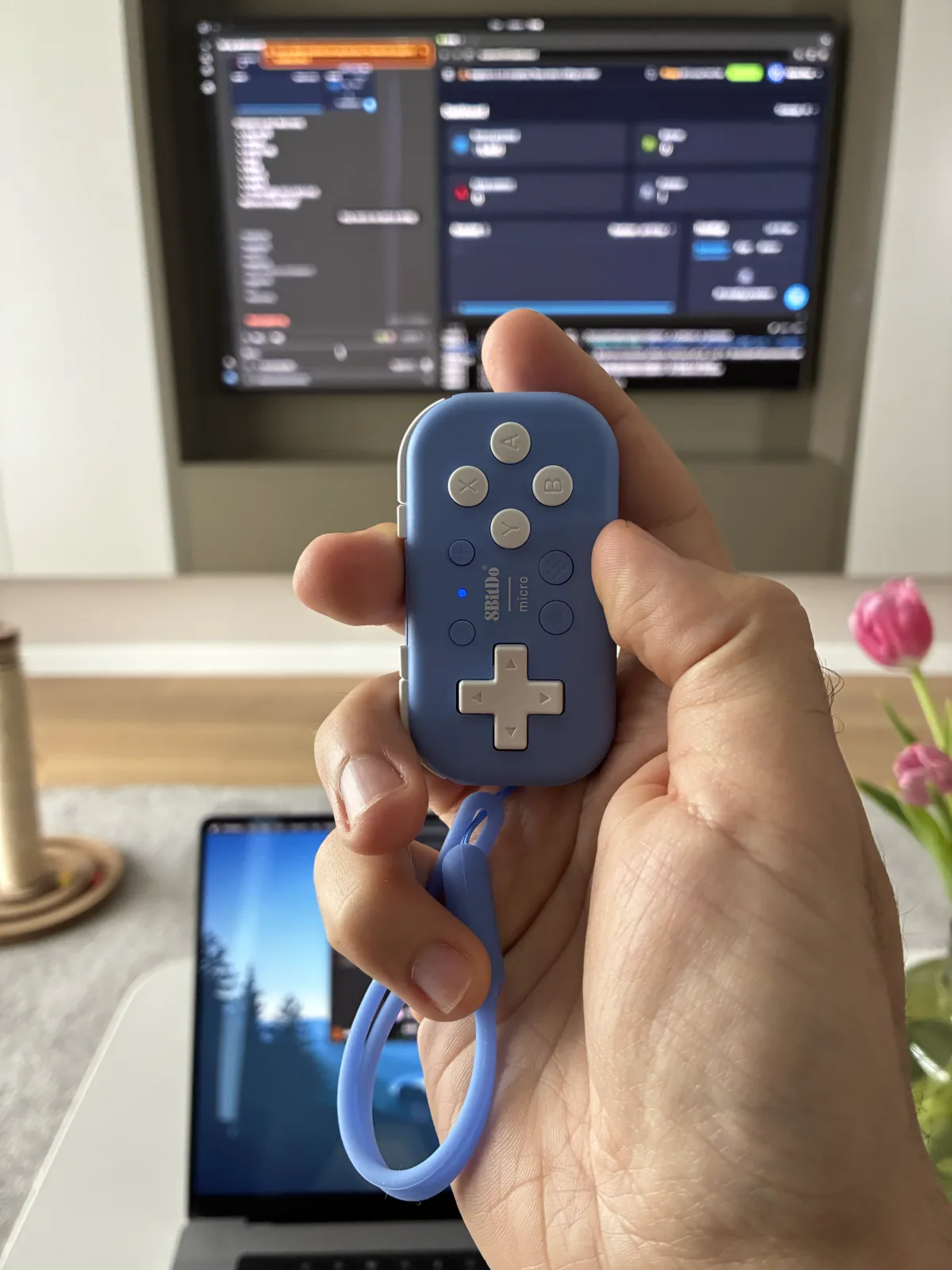 The 8BitDo Micro. About the size of a keychain.
Why the controller?
Voice input alone doesn’t work. The moment Claude Code asks “do you want me to run this command?” or “apply these edits?”, you need to press something. Saying “yes” into Wispr just types the word “yes” into the chat box — not what you want.
So I bought a tiny gamepad, put it in keyboard mode, and mapped its buttons to the exact keys Claude Code Desktop listens for. Accept, reject, navigate, escape. Done.
Quick note: the 8BitDo desktop app didn’t work for me (couldn’t see the controller), but the iOS app did — I mapped everything from my phone.
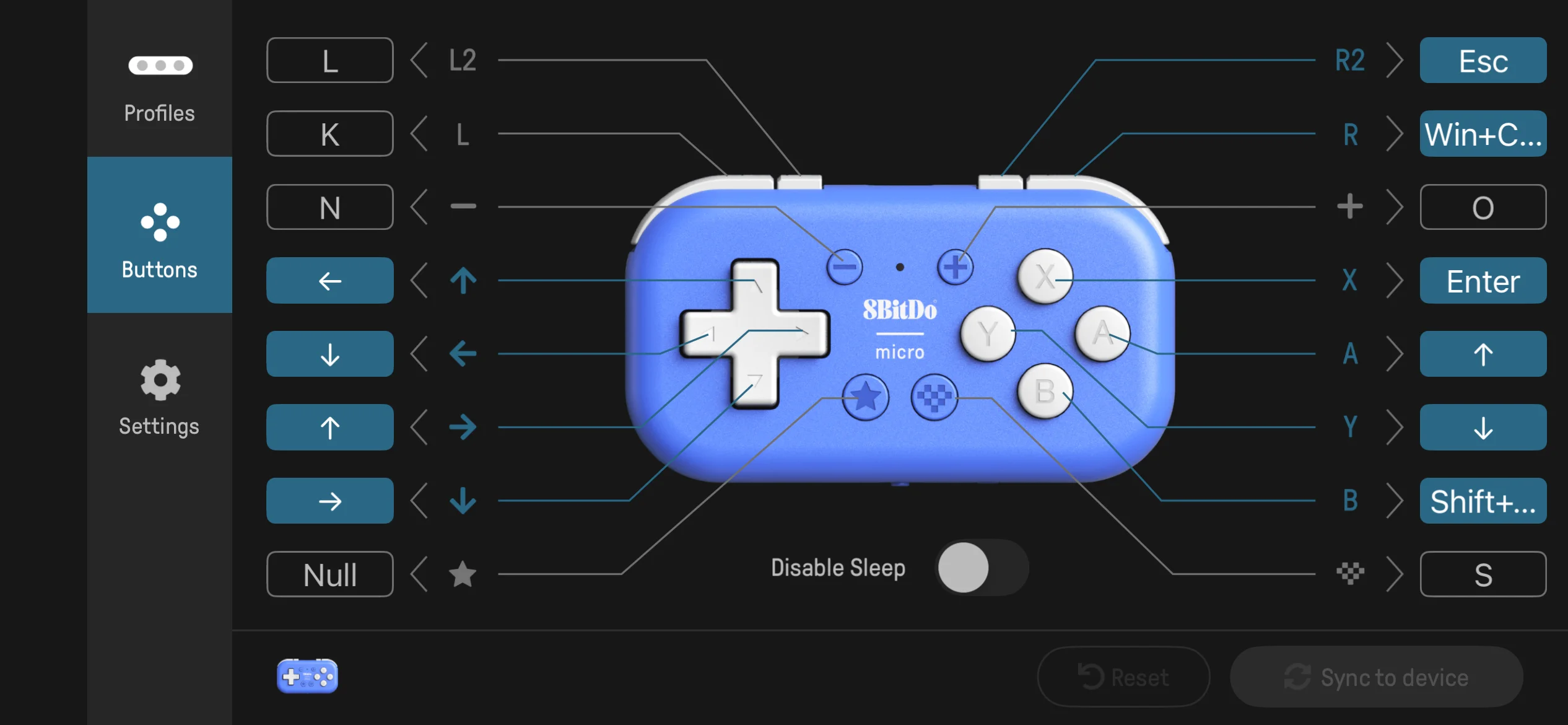 Button mapping in 8BitDo’s Ultimate Software. Enter, Esc, arrows, Shift+Tab — the keys Claude Code actually cares about. The up/down arrows look swapped because I hold the controller rotated (see the GIF below), so the D-pad ends up pointing the “right” way from my grip.
How it actually works
Hold Ctrl+Cmd+`, say what I want, let go. Wispr transcribes it straight into the Claude Code chat box. (Wispr defaults to fn, but fn can’t be mapped to a controller button, so I use the key combo and bind it to the controller instead.)
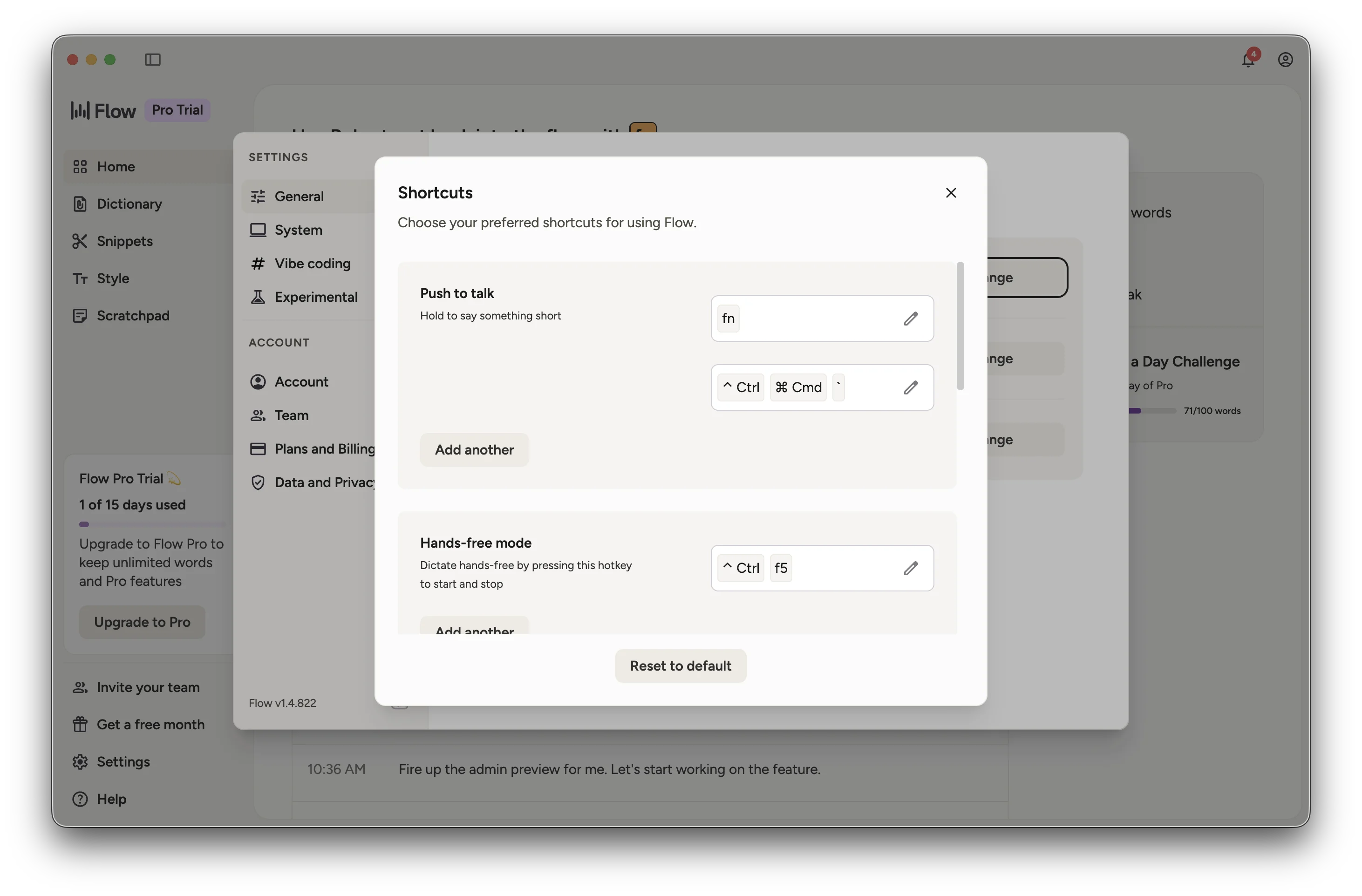 Two push-to-talk shortcuts — I use the
 Ctrl+Cmd+` combo because it’s mappable to the controller.
Claude Code goes off and does the thing. Reads files, edits them, runs the dev server, screenshots the preview. When it asks for approval, I hit the accept button on the controller. When I want to redirect it, I hold the combo and talk again.
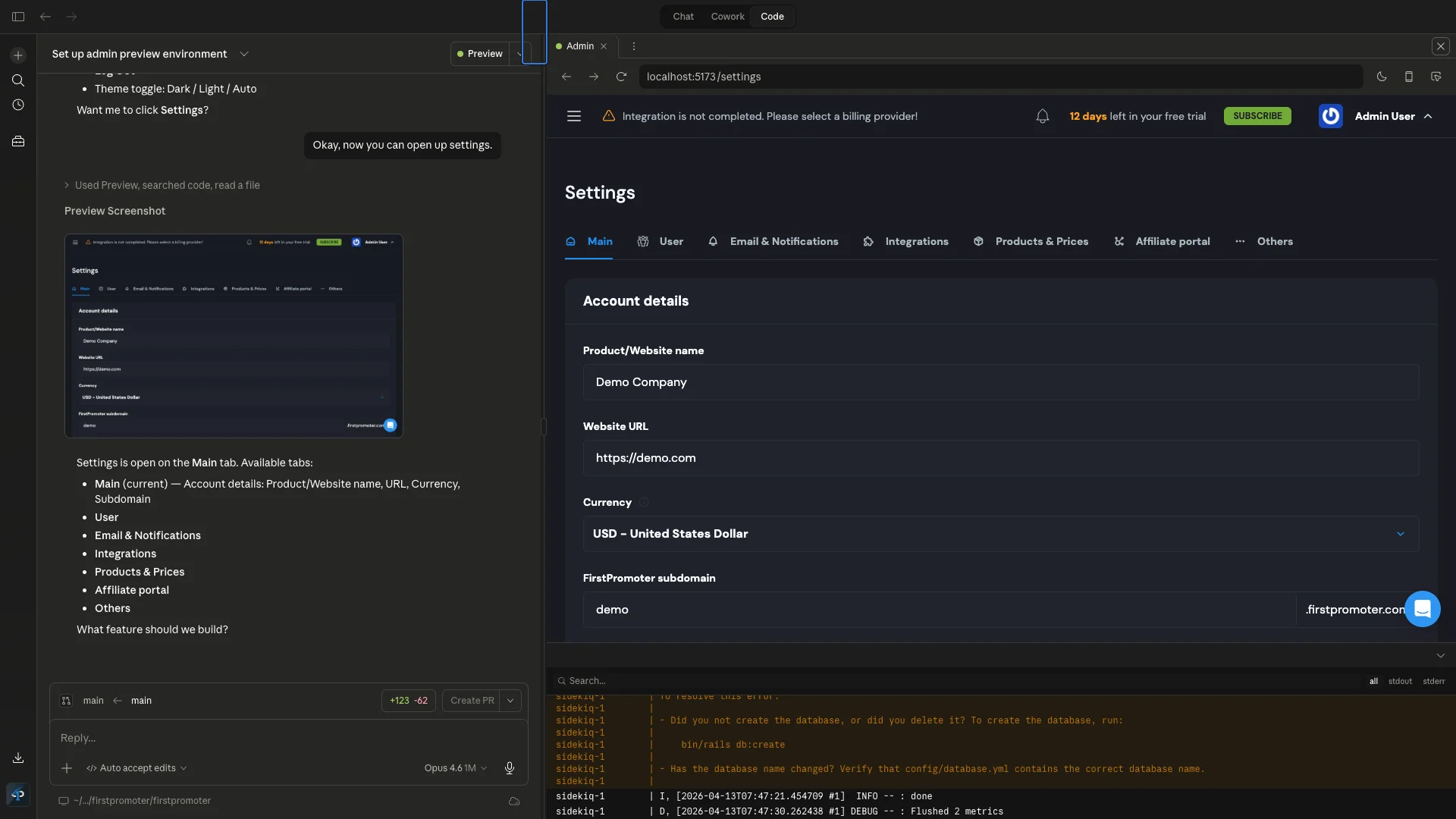 Claude Code Desktop. Chat on the left, live preview on the right. Controller does the approvals.
Here’s a real clip — me describing a feature, Claude Code doing it, me approving with the controller, done:
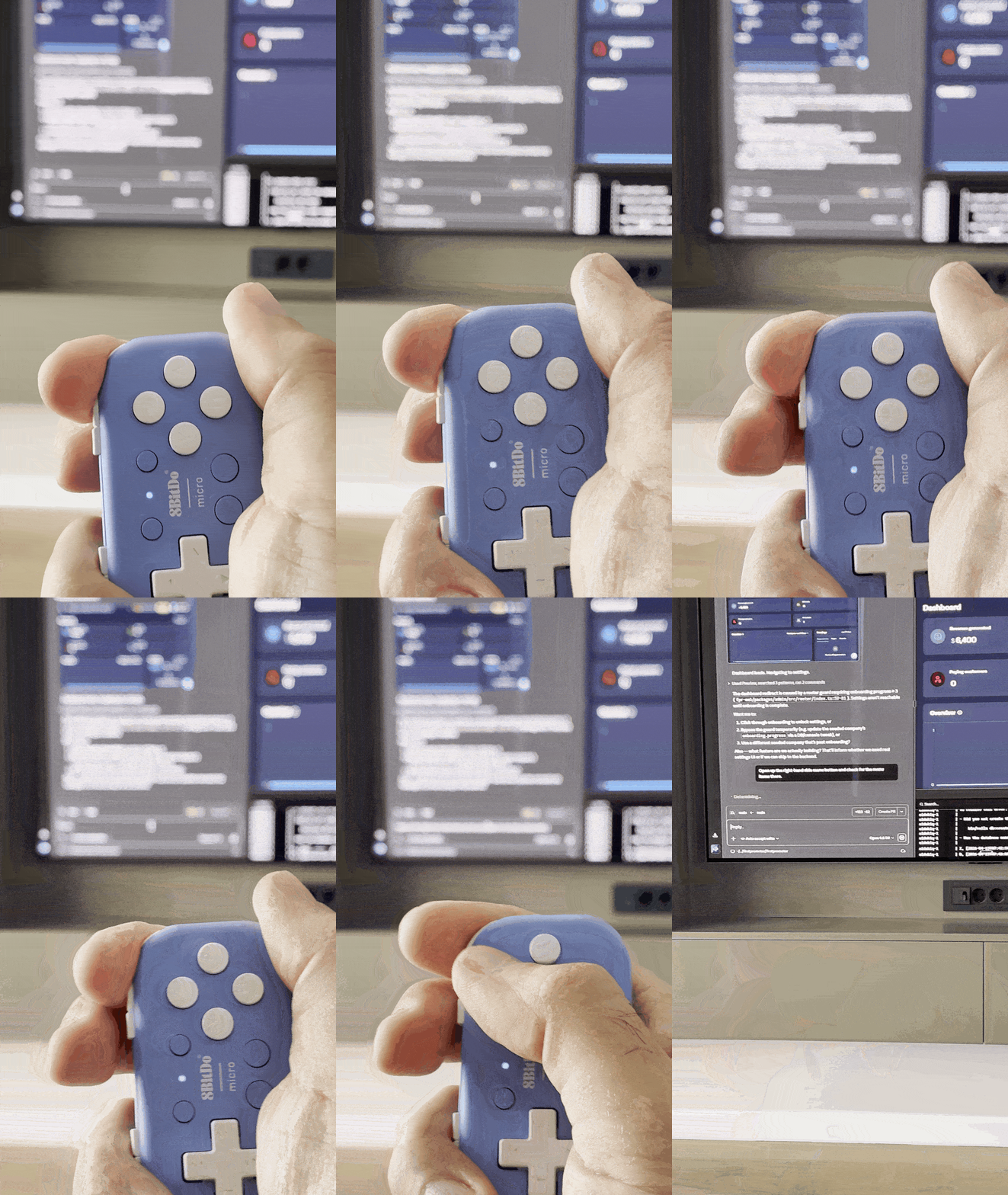
Zero keystrokes. The feature is in the preview before I’ve finished my coffee.
Why I actually do this
Thought it would be a novelty. It’s not. Talking forces me to explain what I want — intent, constraints, edge cases — instead of jumping into code. Claude gets a better brief, the first attempt is closer to right. My “thinking out loud” became the spec.
One nice bonus: Wispr Flow keeps a history of everything you dictate. If Claude eats your prompt, or you want to reuse a description, it’s all there in the transcript panel.
The setup in 30 seconds
- Install Wispr Flow (free tier works fine). Set push-to-talk to a key combo you can map to a button (I use
Ctrl+Cmd+`). - Get an 8BitDo Micro (or any programmable bluetooth controller). Map the buttons you need — Enter for accept, Esc for reject, arrows for navigation, plus your Wispr shortcut.
- Open Claude Code Desktop. Focus the chat box.
- Talk. Press the button when it asks. Repeat.
The interesting part isn’t the tools. It’s noticing how much of coding is describing intent — and how much better that works out loud, with a controller in your hand, than hunched over a keyboard.
Setting up FirstPromoter with Claude Code Desktop previews
At FirstPromoter, our platform spans four distinct frontends — an Admin Dashboard, an Affiliate Portal, a Support Dashboard, and our public Docs site — all living as git submodules inside a single monorepo alongside our Rails API and dbt analytics project. Wiring this up to Claude Code’s new desktop preview feature took a single file, .claude/launch.json:
{
  "version": "0.0.1",
  "configurations": [
    {
      "name": "Admin",
      "runtimeExecutable": "docker-compose",
      "runtimeArgs": ["up"],
      "port": 5173,
      "autoPort": false
    },
    {
      "name": "Affiliate",
      "runtimeExecutable": "docker-compose",
      "runtimeArgs": ["up"],
      "port": 3001,
      "autoPort": false
    },
    {
      "name": "Support",
      "runtimeExecutable": "docker-compose",
      "runtimeArgs": ["up"],
      "port": 5175,
      "autoPort": false
    },
    {
      "name": "Docs",
      "runtimeExecutable": "docker-compose",
      "runtimeArgs": ["up"],
      "port": 3003,
      "autoPort": false
    }
  ]
}
Each frontend is declared as a preview configuration that shells out to docker-compose up, mapped to the port its service is exposed on. Because every preview shares the same Docker Compose stack, launching any one of them brings up the entire backend — Rails API, Postgres, Redis, Sidekiq, Elasticsearch — so Claude can click through the Admin UI, hit a real API, and watch the console for errors without me juggling a dozen terminals.
The result: Claude can preview a feature, review the diff inline, and push the PR through CI to merge — all without leaving the desktop app, and without writing a single bespoke dev script on top of the Docker setup FirstPromoter already had.